

18 Reviews
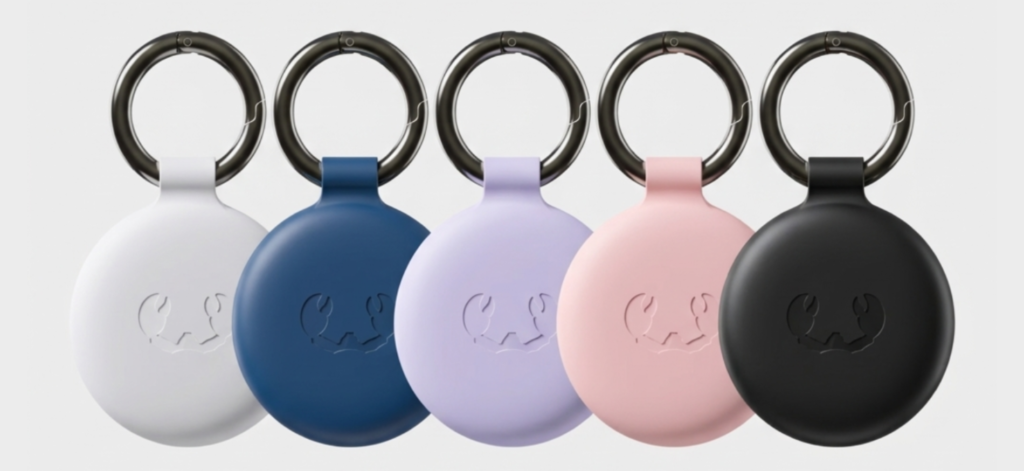
Your choice: Purple





199.99 DH
Wireless item locator
Smart Finder
Purple
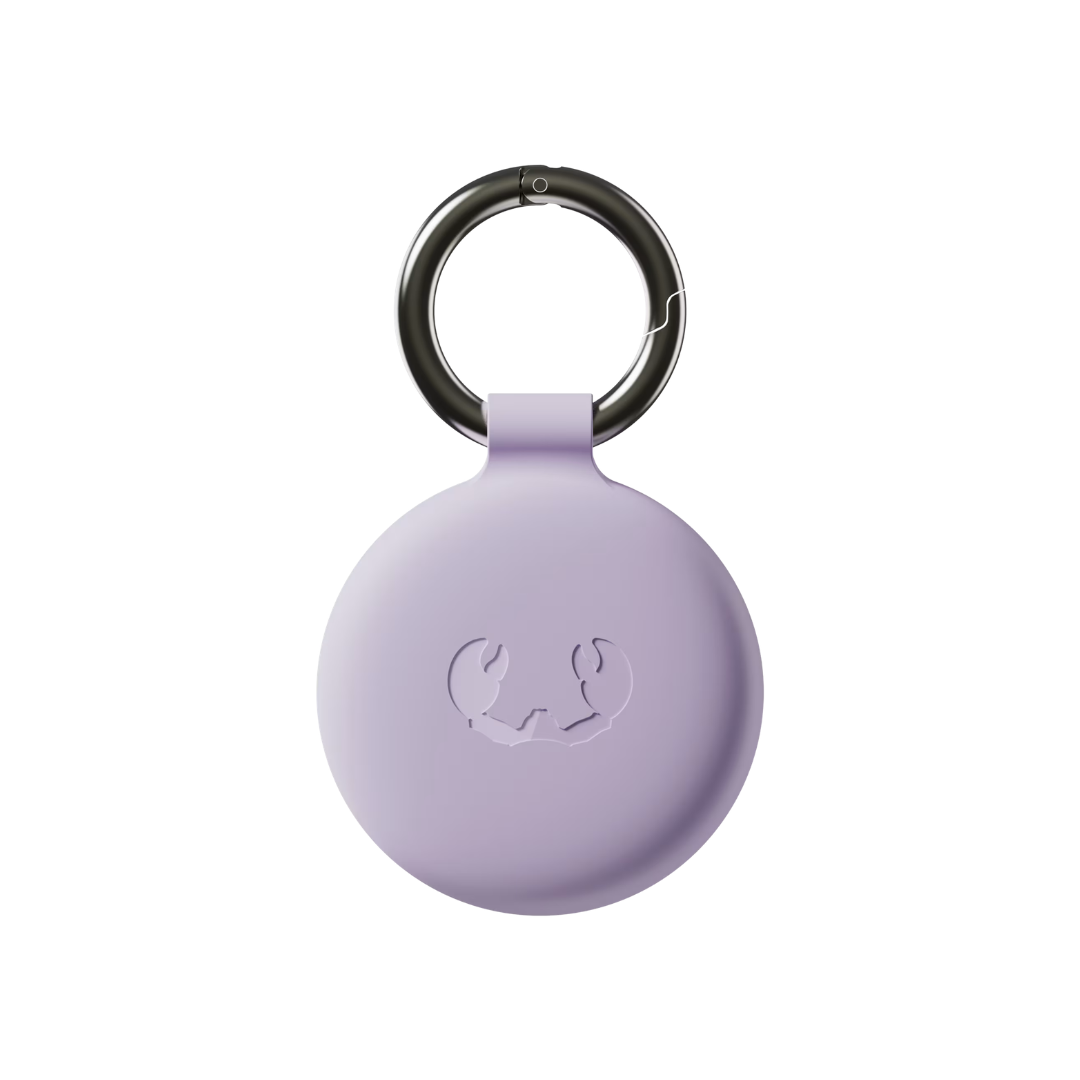
With Fresh ‘n Rebel’s Smart Finder you can always keep track of your favourite items, no matter where in the world they are. Attach the Smart Finder to your keys, wallet, bag, luggage, e-bike or pet and easily locate it using the Apple Find My app on your iPhone, iPad, Mac or the Find Items app on your Apple Watch.
- Find My-enabled
- Supports Lost Mode, Notify When Found and Notify When Left Behind
- Built-in speaker for beeping sounds
- Waterproof and dustproof (IP67)
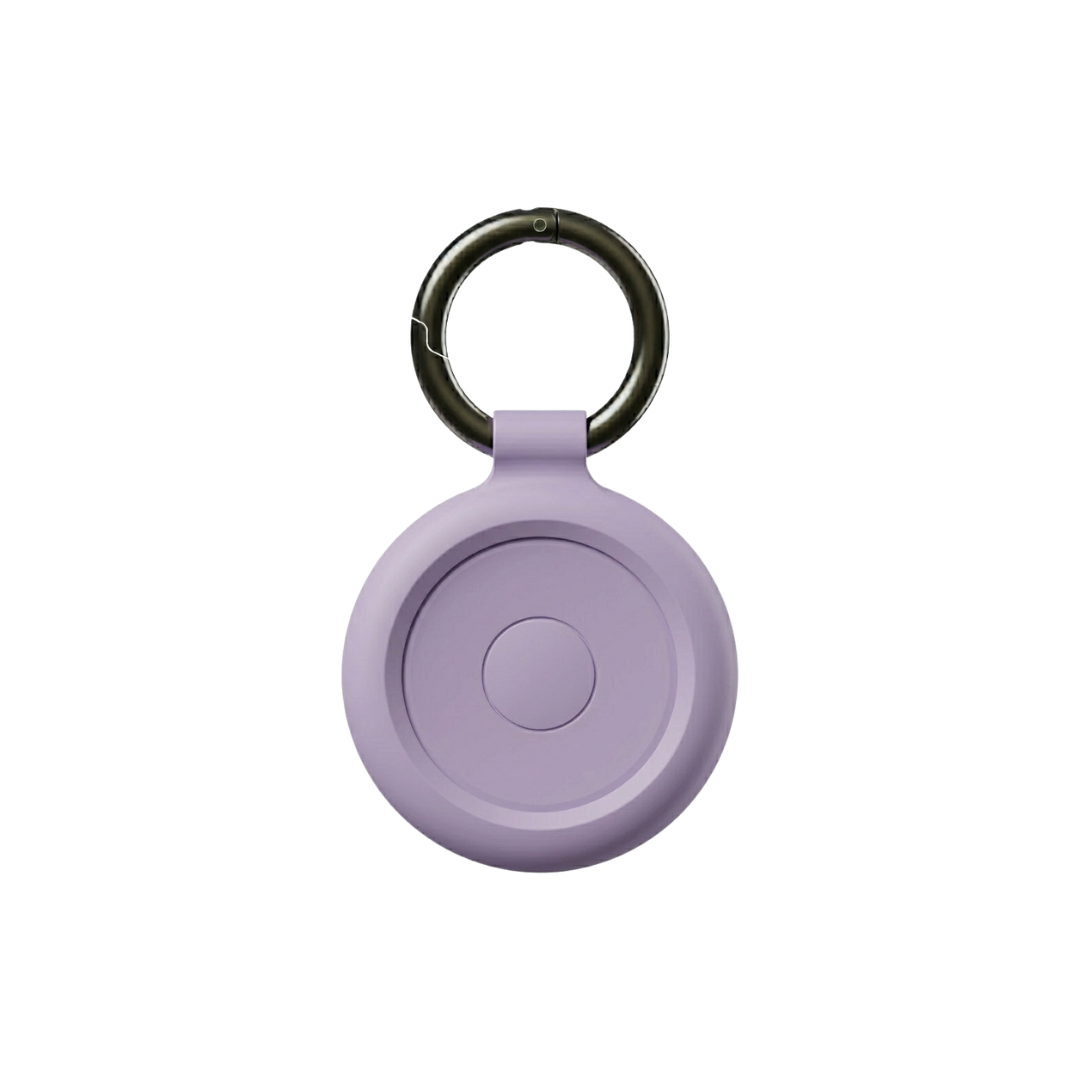
- Including detachable (key ring) bumpers
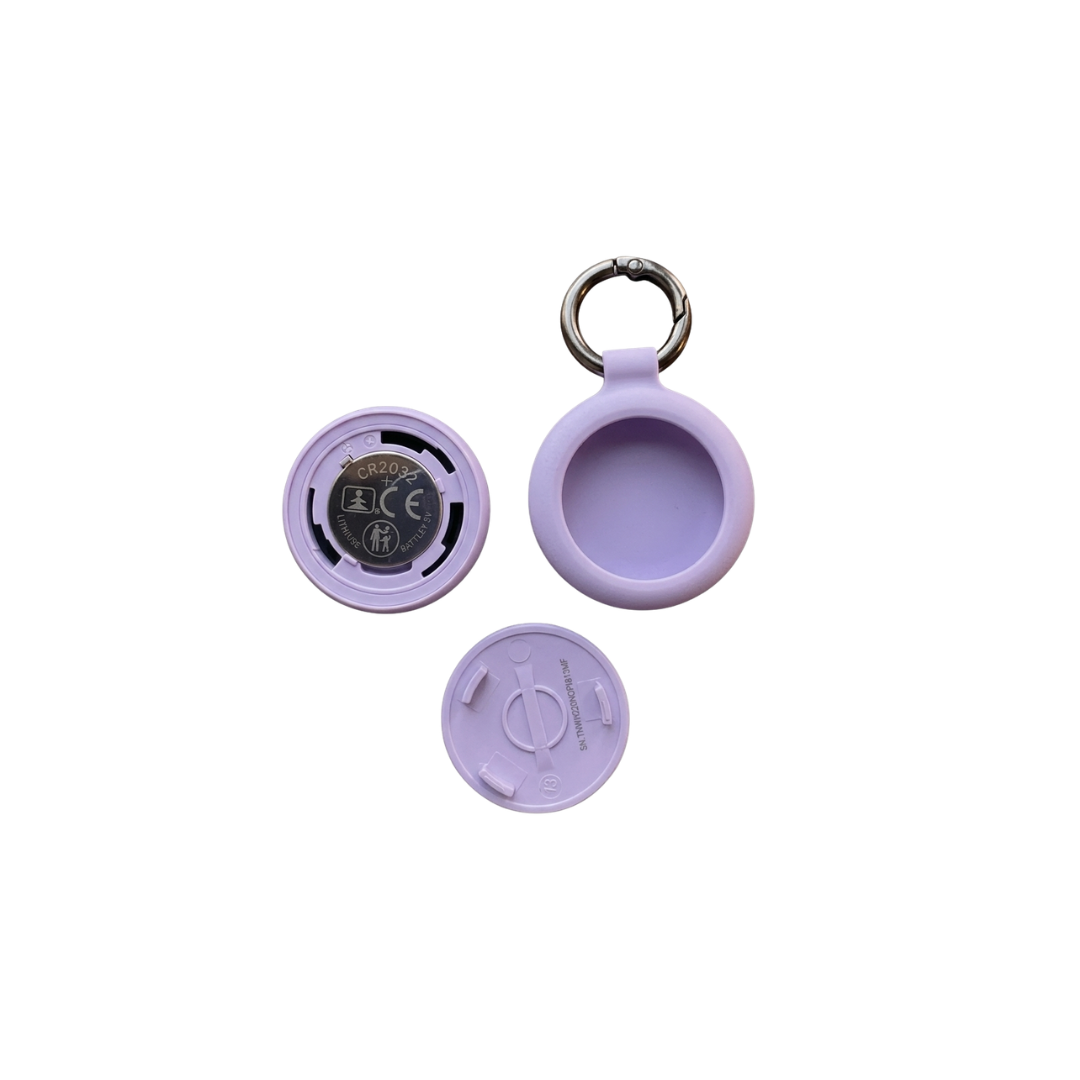
- Replaceable battery (CR-2032)
- Secure checkout
- Hassle-free returns
- Free delivery > €50
- Quick & personal support
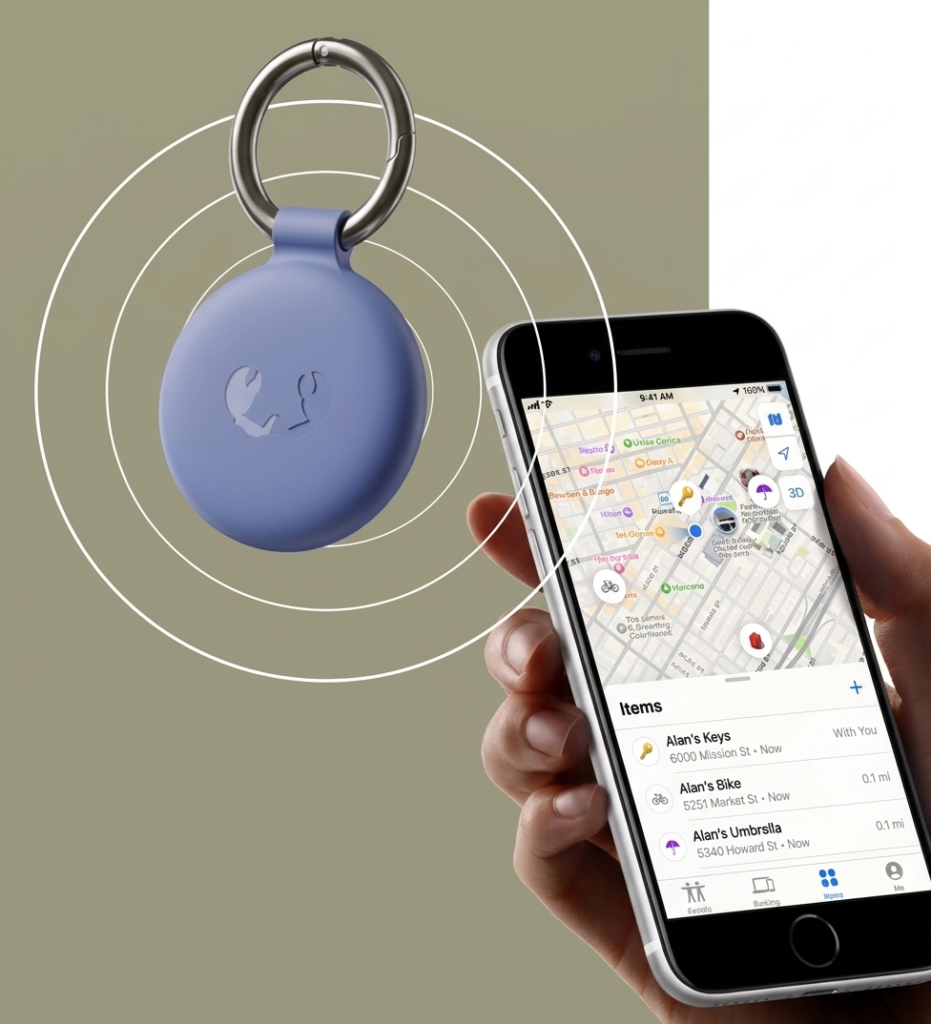
Find My network
Got you(r) back

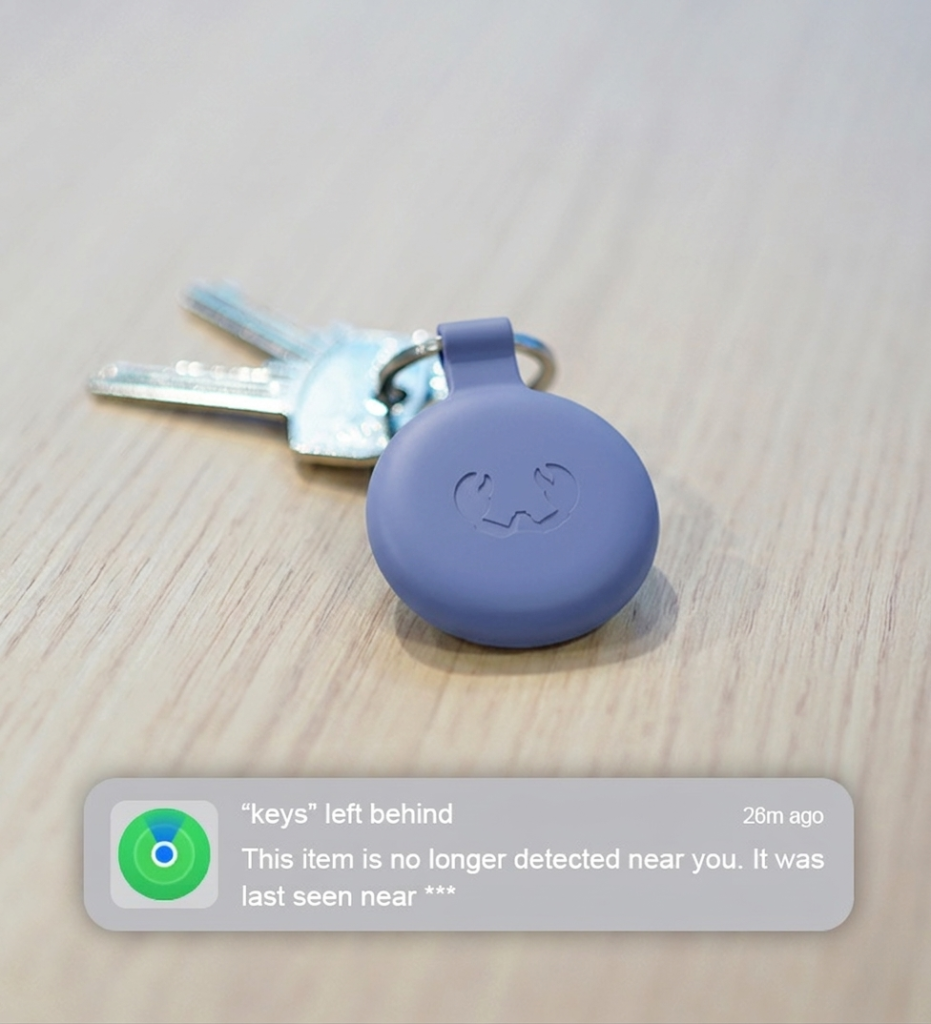
Notifications
Stay in the loop
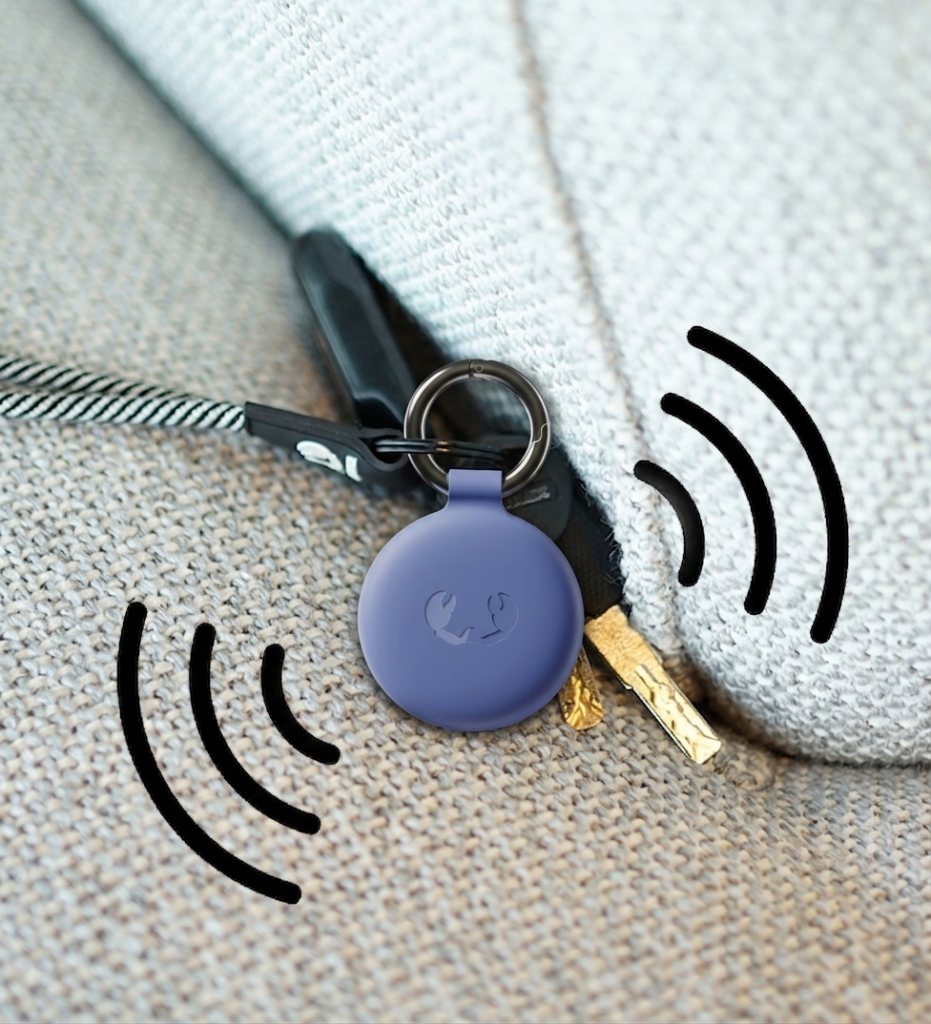
Play a sound
Hide and seek
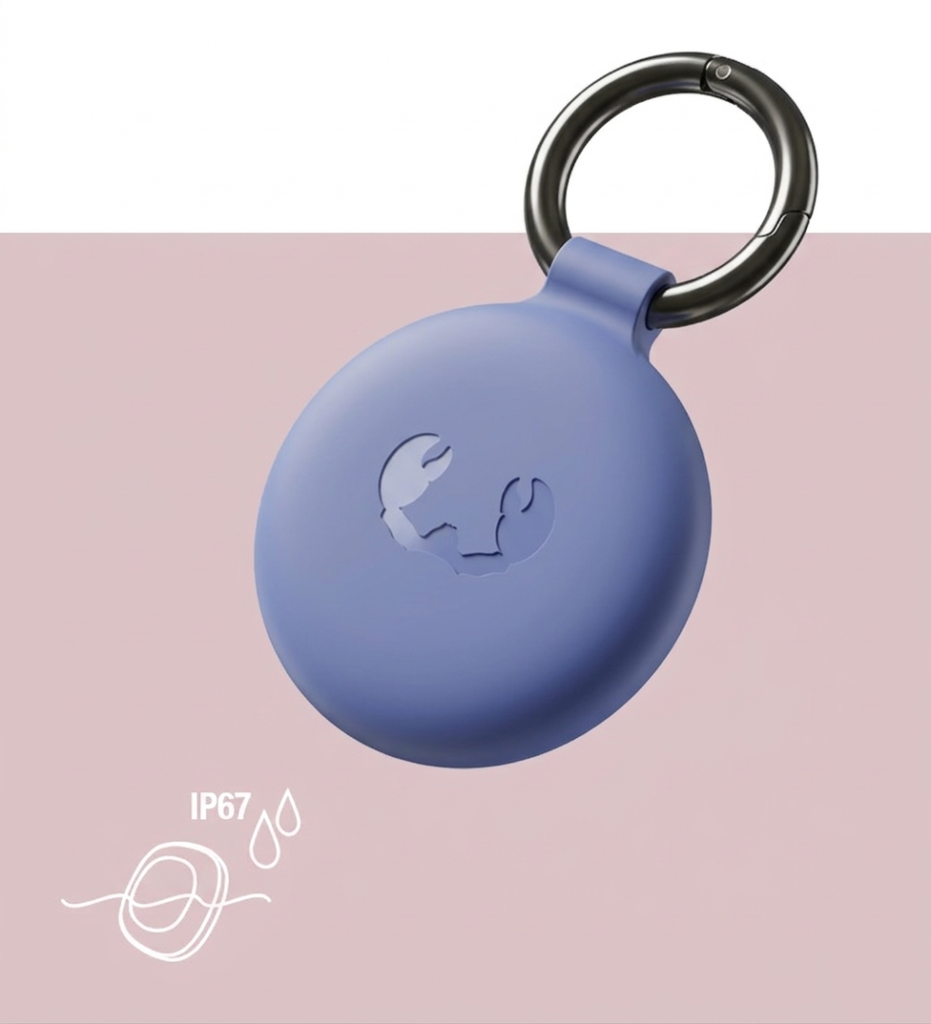
Dust- and waterproof
Go wherever
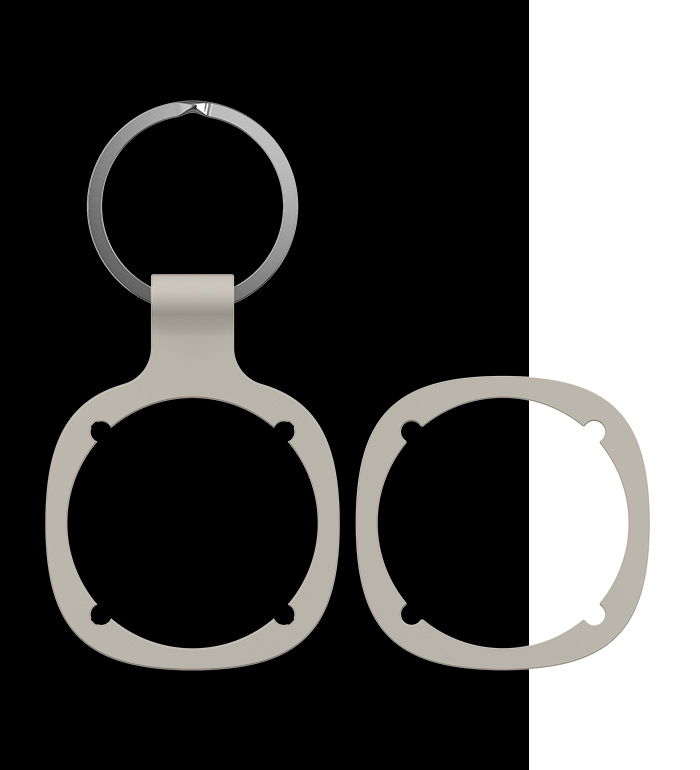
Detachable bumpers
Switch it up
Replaceable battery
Long-lasting power

Frequently asked questions
What is the Fresh ’n Rebel Smart Finder?
With the Fresh ‘n Rebel Smart Finder, you can keep an eye on your favourite items anytime, anywhere. Attach the Smart Finder to, for example, your keys, bag or dog and find it your favourites with ease. Besides that, the Smart Finder has useful features, such as a notification when your Smart Finder is out of your reach.
Is my Smart Finder waterproof?
Yes, it is! The Fresh ‘n Rebel Smart Finders are IP67 dust- and waterproof. This means your Smart Finder can be submerged in water for up to 30 minutes without breaking down.
How long does the battery of my Smart Finder last?
How long does the battery of my Smart Finder last?
How do I connect my Smart Finder to my device?
A tip for the (slightly too) enthusiast ones: check if your device is updated to the latest iOS version and enable Bluetooth.
Step 1: First things first, rotate the Smart Finder a quarter turn to open the device. Remove the battery protection film by pulling it out. The battery is now plugged in.
Step 2: Press the function button once to switch on your Smart Finder. The sound indicates the device is turned on.
Step 3: Open the Apple Find My app on your compatible iPhone or iPad.
Step 4: Click on + and then ‘Add item’.
Step 5: Once your Smart Finder is found, tap ‘Connect’.
Step 6: Choose a nice name and select an emoji. Then tap ‘Continue’.
Step 7: Click on ‘Agree’ to add the Smart Finder to your Apple ID.
Step 8: Tap ‘Confirm’ and your Smart Finder is ready to go!
If the Smart Finder is not added to an Apple ID within 10 minutes after turning it on, it will automatically turn off again. Repeat steps 2 to 8 to try again.
How do I connect my Smart Finder to my device?
A tip for the (slightly too) enthusiast ones: check if your device is updated to the latest iOS version and enable Bluetooth.
Step 1: First things first, rotate the Smart Finder a quarter turn to open the device. Remove the battery protection film by pulling it out. The battery is now plugged in.
Step 2: Press the function button once to switch on your Smart Finder. The sound indicates the device is turned on.
Step 3: Open the Apple Find My app on your compatible iPhone or iPad.
Step 4: Click on + and then ‘Add item’.
Step 5: Once your Smart Finder is found, tap ‘Connect’.
Step 6: Choose a nice name and select an emoji. Then tap ‘Continue’.
Step 7: Click on ‘Agree’ to add the Smart Finder to your Apple ID.
Step 8: Tap ‘Confirm’ and your Smart Finder is ready to go!
If the Smart Finder is not added to an Apple ID within 10 minutes after turning it on, it will automatically turn off again. Repeat steps 2 to 8 to try again.
Bits 'n Bites
In the box
- 1 x Smart Finder
- 1 x Keychain bumper + keyring
- 1 x Regular bumper
- 1 x Pre-installed CR-2032 battery
- 1 x Extra CR-2032 battery
- Quick start guide
Features
- Find My-enabled
- Support Lost Mode, Notify When Found and Notify When Left Behind
- Built-in speaker for beeping sounds
- Waterproof and dustproof (IP67)
- Including detachable (key ring) bumpers
- Replaceable batteries (CR-2032)
 English
  Français
  العربية